
#9 Crypto Cockpit: PNG Export, Import/Export & Reset
#9 Crypto Cockpit: PNG Export, Import/Export & Reset
This article covers saving chart images, backing up your Cockpit data, and resetting your settings. On desktop these actions live in the top bar; on mobile they’re gathered under the 💾 tab next to Levels (see below).
## Saving a single chart as an image
Click **Save as PNG** (in the top bar, or the corner of the Levels panel) to download the current chart as an image file — handy for sharing a setup or keeping a personal record.
## Bulk PNG export
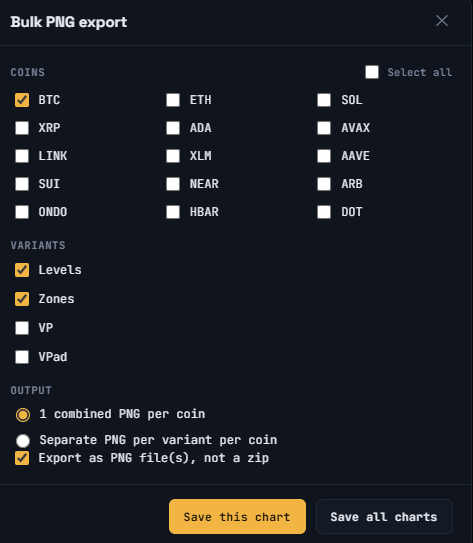
Click **Bulk Export ▾** to open a window where you can export several chart images at once:
1. Choose which **Coins** to include (or use “Select all”).
2. Choose which **Variants** to include: Levels, Zones, VP (Volume Profile), and/or VPad (Volume Profile Advanced).
3. Choose the **Output** format: one combined PNG per coin, or a separate PNG per variant per coin — and whether to export as individual files or a zip.
4. Click **Save this chart** to export just the currently selected coin, or **Save all charts** to run the full batch.
[SCREENSHOT: The Bulk PNG export window with coins and variants selected]
A progress bar shows how the export is going while it runs.
## Exporting your data
Click **Export** in the top bar to download your Cockpit settings as a JSON file. You can choose between:
– **Pinned levels and S/R only** — just your pinned levels, selected support/resistance, and trendlines
– **All** — pinned levels, S/R, trendlines, and your chart settings
## Importing your data
Click **Import** and select a previously exported JSON file to load it back in.
Only import a file you exported yourself or received from someone you trust.
## Resetting Cockpit
Click **Reset** to reset all Cockpit settings back to their defaults. This affects your indicator setup, tool preferences, and similar settings — it does not delete your Crypto Portfolio data.
This action cannot be undone from within the app, so export a backup first if you might want to restore your current setup later.
## On mobile: the 💾 tab
On a phone or narrow screen, the top-bar actions (Save PNG, Bulk Export, Export, Import, Reset, Logout, plus the TradingView and Advanced Analysis buttons) move into their own icon-only tab (💾) next to the Levels tabs, so they stay reachable without cluttering the header. On desktop these same actions are always visible in the top bar, so this tab isn’t shown separately there.
⚠️ RISK WARNING & AI DISCLOSURE
- This information is generated by Artificial Intelligence (AI) and complex algorithms. While advanced, these systems can contain errors or inaccuracies and are for educational purposes only.
- Technical analysis provides no guarantees; this information is purely informative.
- All discussed scenarios are hypothetical and do not constitute predictions or expectations.
- Past performance is not an indicator of future results.
- This is not financial advice and is not intended as a call-to-action for the reader.
- No implicit direction is claimed, and no specific behavior of market participants is suggested.