
#3 Crypto Portfolio: Customizing Your Dashboard
You can rearrange, resize, hide, and show almost every part of the Crypto Portfolio page — the summary blocks at the top, the columns in the table, and even the category filter buttons. Your choices are remembered automatically.
## Opening the settings panel
Click the **Settings** toggle near the top of the page to open the settings panel.
[SCREENSHOT: The Settings toggle switch]
Inside, you’ll find sections for Bulk import, Support & Resistances, Layout, Visibility, and Reset.
## Rearranging and resizing blocks
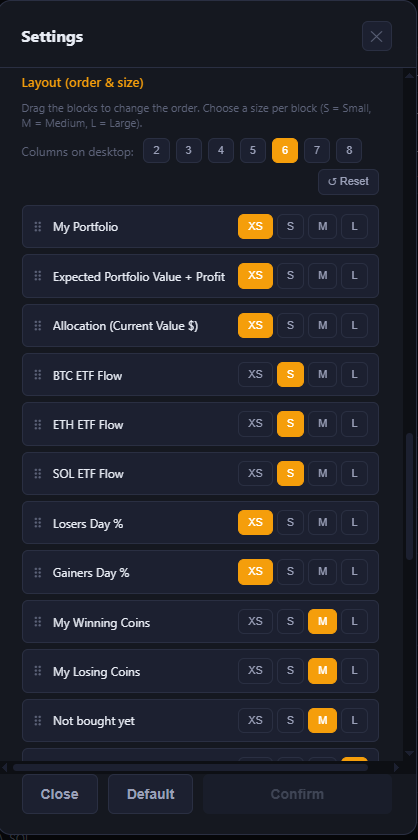
Under **Layout (order & size)**, drag any block up or down to change where it appears on your dashboard. For each block you can also choose a size:
– **XS** (Extra small)
– **S** (Small)
– **M** (Medium)
– **L** (Large — takes the full width)
You can also add empty “spacer” blocks if you want extra visual breathing room between sections.
## Showing and hiding blocks
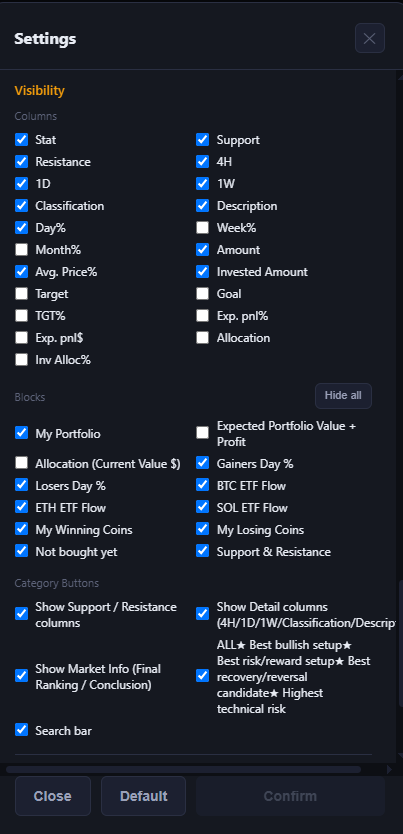
Under **Visibility → Blocks**, tick or untick any block (My Portfolio, Allocation, Gainers, ETF Flow, and so on) to show or hide it. The **Hide all** button (also available as a shortcut at the top of the page) collapses every block at once — handy on a smaller screen, or if you just want the coin table.
## Showing and hiding table columns
Under **Visibility → Columns**, choose exactly which columns appear in your coin table — for example, you might hide the 4H/1D/1W trend columns if you don’t use them, or hide Support/Resistance if you haven’t set levels for most coins.
You can also drag column headers directly in the table to reorder them, and use the two switches above the table (“Show Support / Resistance columns” and “Show Detail columns”) as quick shortcuts.
## Category buttons
Under **Visibility → Category Buttons**, choose which category filter chips appear above the table (used for filtering by favorite/category — see **”Favorites, Filters & Categories”**).
## Bulk importing coins
The **Bulk import coins** section at the top of the settings panel lets you add several coins at once, instead of going through the Add form one at a time.
## Computer vs. mobile — separate layouts
The app remembers your layout and visibility choices separately for your computer and for your phone/tablet. A note at the top of the settings panel tells you which profile you’re currently editing, so changes you make on your phone won’t rearrange things on your desktop, and vice versa.
## Resetting
At the bottom of the settings panel you can:
– Delete the saved data for specific coins only
– Clear all Support/Resistance values without removing the coins themselves
– Add the default list of coins back to your portfolio
– Delete everything and start over
Each option requires you to confirm before anything is removed. Deleting data cannot be undone.
⚠️ RISK WARNING & AI DISCLOSURE
- This information is generated by Artificial Intelligence (AI) and complex algorithms. While advanced, these systems can contain errors or inaccuracies and are for educational purposes only.
- Technical analysis provides no guarantees; this information is purely informative.
- All discussed scenarios are hypothetical and do not constitute predictions or expectations.
- Past performance is not an indicator of future results.
- This is not financial advice and is not intended as a call-to-action for the reader.
- No implicit direction is claimed, and no specific behavior of market participants is suggested.