
#2 Crypto Portfolio: Adding & Editing Coins
This article walks through every field in the Add/Edit form, including the Turkish Lira shortcut, the different ways to set a target price, and the built-in “buy simulator.”
## Opening the form
– To add a new coin, click **Add** above the portfolio table.
– To edit a coin you already added, click the edit (pencil) icon on its row.
[SCREENSHOT: The portfolio table with the edit icon highlighted on one row]
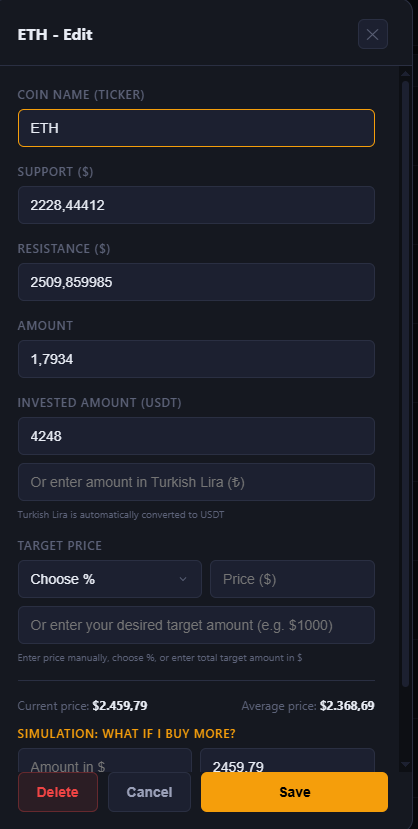
Both open the same form, titled **Add Coin** or **[Coin] – Edit**.
## The fields, one by one
**Coin name (ticker)** — pick the coin from the dropdown. When adding a new coin, only coins from the supported list can be selected. When editing an existing entry, the coin itself can’t be changed here — remove and re-add it instead if you picked the wrong one.
**Support ($) / Resistance ($)** — optional price levels you choose for this coin. These are used to calculate the risk/reward figure shown in the table and in the Support & Resistance dashboard block. See **”Support & Resistance and Risk/Reward”** for details on how that number is calculated.
**Amount** — how many units of the coin you hold.
**Invested amount (USDT)** — how much you put in, in USDT. If it’s easier, you can instead type an amount in Turkish Lira in the field below it; it will be converted to USDT automatically using the current exchange rate, and the converted amount is filled in for you.
**Target price** — the price at which you’d consider this position to have reached your goal. You can set this in three different ways, and they all write to the same “Target price” field:
1. Type a price directly.
2. Choose a percentage from the dropdown (for example +25%, or “Break-even”). The app calculates the target price from your average buy price.
3. Enter a target dollar value for the position instead (for example “I want this position to be worth $1,000”), and the app works out what price that implies given your amount.
Target price is only used to calculate the “Expected Portfolio Value” and “Expected Profit” figures elsewhere in the dashboard — it does not place any order and is not a prediction that the price will reach that level.
## The buy simulator
When editing an existing coin, a **”Simulation: What if I buy more?”** section appears below the form. Enter an amount in dollars and a price, and it shows you what your new average price would become if you made that additional purchase. Nothing is saved or executed — it’s purely a calculation to help you think through a decision before you act on it elsewhere.
## Saving, canceling, deleting
– **Save** stores the entry and updates your dashboard immediately.
– **Cancel** closes the form without saving changes.
– When editing, a **Delete** button removes the coin from your portfolio entirely (this cannot be undone from within the app).
## A note on the numbers
Everything in this form and its calculations (average price, target price, expected value, simulated average) is based entirely on what you type in and on the market price at the time. None of it is a recommendation to buy, sell, or hold, and none of it guarantees a future outcome.
⚠️ RISK WARNING & AI DISCLOSURE
- This information is generated by Artificial Intelligence (AI) and complex algorithms. While advanced, these systems can contain errors or inaccuracies and are for educational purposes only.
- Technical analysis provides no guarantees; this information is purely informative.
- All discussed scenarios are hypothetical and do not constitute predictions or expectations.
- Past performance is not an indicator of future results.
- This is not financial advice and is not intended as a call-to-action for the reader.
- No implicit direction is claimed, and no specific behavior of market participants is suggested.