
#6 Crypto Cockpit: Levels — Pinned, API & Social Levels
6 Crypto Cockpit: Levels — Pinned, API & Social Levels
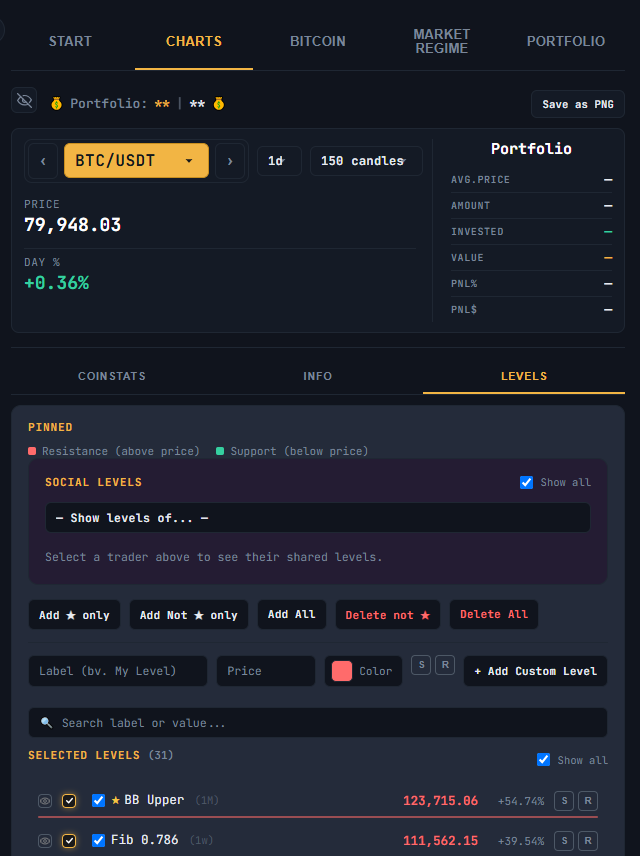
The **Levels** tab (inside Charts) is where you manage every price level shown on your chart: levels suggested by the app, levels you add yourself, and levels shared by other traders. The same tools are also available as their own full-width main tab, **Social Traders Hub** (top of the Levels panel) — it mirrors this exact content, just outside the Charts sub-tabs, so it’s easier to find on mobile.
[SCREENSHOT: The Levels tab, showing Pinned, Social Levels, Custom Level form, and API Levels sections]
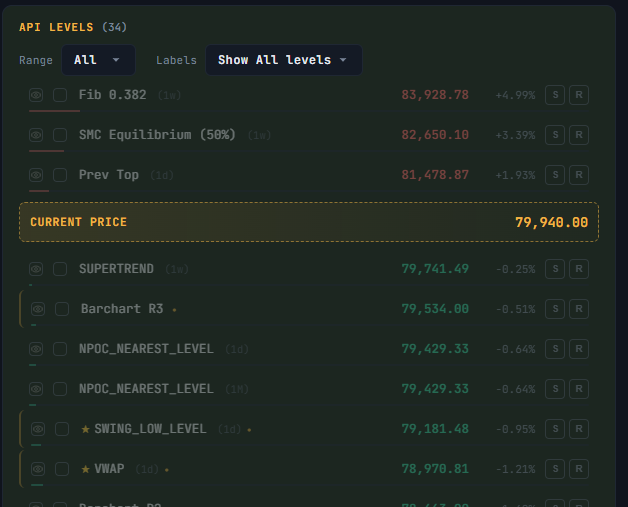
## Support and resistance, at a glance
Throughout this tab, a red marker means **Resistance** (a level above the current price) and a green marker means **Support** (a level below the current price).
## Social Levels — viewing levels shared by other traders
The **Social Levels** block lets you view price levels that other traders on the platform have chosen to share.
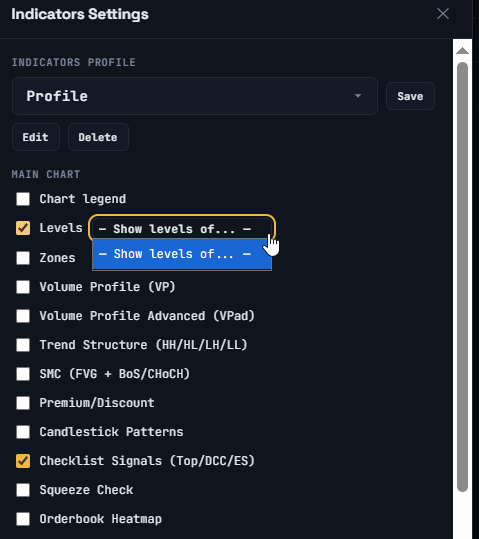
Use the **”— Show levels of… —”** dropdown to pick a trader whose levels you want to see. The same dropdown is also available directly in **Indicator Settings**, next to the “Levels” checkbox, so you can switch trader without leaving that window.
Their levels appear in the list below, and on the chart (if the Levels indicator is enabled).
Use **Show all** to quickly show or hide every social level on the chart. This is temporary and resets when you reload the page.
Social levels are chosen and shared by individual users of the platform. They reflect that person’s own view, not the app’s analysis, and are not verified or endorsed by AiTraderView. Treat them as one opinion among many, not as advice.
## Pinning levels
The **Pinned** section lets you select which levels (from the API-suggested levels below) you want to keep visible on your chart:
– **Add ★ only** — pin only the levels currently marked as important (starred)
– **Add Not ★ only** — pin only the non-starred levels
– **Add All** — pin every current level
– **Delete not ★** / **Delete All** — remove pinned levels in bulk
## Adding a custom level
Use the **Custom Level** form to add your own price level:
Enter a **Label** (for example, “My Level”) and a **Price**.
Optionally choose a **Color** for the line (defaults to the standard Support/Resistance color).
Optionally mark it with **S** or **R** to have it picked up as a Support or Resistance value for that coin in Crypto Portfolio.
Click **+ Add Custom Level**.
## Searching and showing/hiding your selected levels
Use the search box to filter your **Selected levels** list by label or price. The **Show all** toggle next to “Selected levels” temporarily shows or hides every selected level on the chart (also reset on reload).
## API Levels
The **API Levels** section shows levels generated by the app’s own analysis for the selected coin. Use the **Range** dropdown to control how wide a price range is considered, and the **Labels** dropdown to filter to only starred levels, only non-starred levels, or all of them.
## A note on levels
Support, resistance, and other price levels — whether suggested by the app, shared by another trader, or entered by you — are reference points, not predictions. Price can move through any level at any time, and none of these levels are a guarantee or a recommendation to act.
⚠️ RISK WARNING & AI DISCLOSURE
- This information is generated by Artificial Intelligence (AI) and complex algorithms. While advanced, these systems can contain errors or inaccuracies and are for educational purposes only.
- Technical analysis provides no guarantees; this information is purely informative.
- All discussed scenarios are hypothetical and do not constitute predictions or expectations.
- Past performance is not an indicator of future results.
- This is not financial advice and is not intended as a call-to-action for the reader.
- No implicit direction is claimed, and no specific behavior of market participants is suggested.